One browser extension for ads, cookies and SEO
Ad and tracker blocking, an on-page SEO panel, a cookie editor with auto-delete, an audit of your other extensions and a one-click scan of the site you are on. Manifest V3, no remote code, no accounts, no telemetry.

What it does
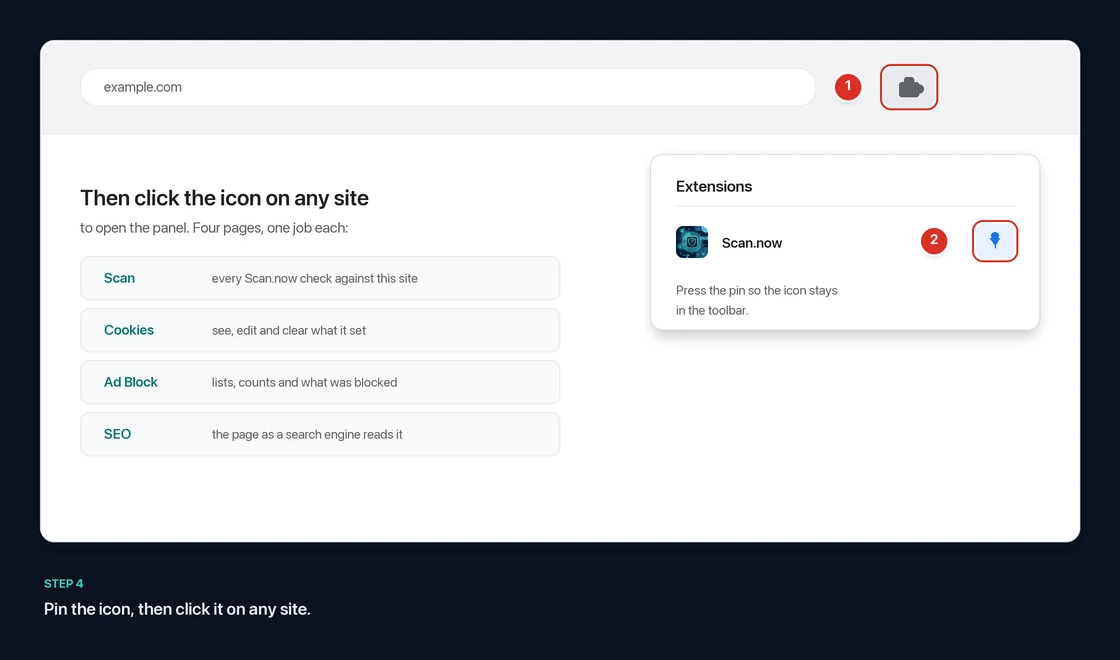
Four pages in the panel, one job each: Scan points our scanners at the site you are on, opens the Premium local LLM key audit and audits your other extensions; Cookies shows and clears what this site has set, Ad Block is the blocker and its counts, and SEO reads the page in front of you.
One button deletes every cookie the site you are on has set. Open the panel under it to read each one with its flags (Secure, HttpOnly, SameSite, expiry), edit a value or delete just that one.
When you close the last tab for a site, its cookies and site data are removed unless the site is on your keep-list.
26,000 rules in six lists you switch on and off separately: EasyList and EasyPrivacy, the lists most ad blockers are built on, plus our own four for ads, analytics and session replay, fingerprinting and identity, and social pixels. Enforced by the browser itself. Any site can be paused with one switch, and the popup shows how many requests were blocked on the page you are on and how many in total.
Blocking a request stops an ad loading but cannot collapse the empty box it left. One switch adds a stylesheet that does — a stylesheet, never a script — and it is off until you turn it on.
Title, description, canonical, robots, the heading outline with skipped levels marked, link and image counts, missing alt attributes, JSON-LD types, Open Graph and Twitter tags, hreflang and viewport — read from the page as rendered, so it works on pages you are signed in to. Seven views, no upload.
Lists your installed extensions with their permissions and host access, scored by the same rules as the extension analyzer.
One click opens the website scanner for the tab you are on. Nothing about your browsing is sent unless you press it.
Premium users can choose a project folder in Scan.now and inspect it locally without Python. The extension never receives access to the folder.
Where the rules come from
In short, below; the ad blocker page covers the blocking side in full, including what it deliberately will not do and how it compares with a dedicated blocker.
Two of the six lists are EasyList and EasyPrivacy, the community lists that most ad blockers are built on. They are not fetched while you browse — the extension does nothing on the network in the background, and a list downloaded on a schedule is a schedule on which you are contacted. They are downloaded and converted when we build a release, by scripts/build_blocklists.py in the repository, and shipped inside the package. So the thing blocking your ads is a file you already have and can read, and updating it is a release rather than a silent download.
Two honest caveats. The first is that we convert only the network rules — the ones that say “do not load anything from this host”. Cosmetic rules, the ones that hide an element by CSS selector, need code running inside every page you visit, and this extension does not do that; the ad-space hiding switch above is a fixed stylesheet, not the lists. The second is that Chrome guarantees an extension 30,000 enforced rules, and the two lists together hold over 100,000, so we keep the most general ones: Whole-domain blocks first, every exception rule kept, which works out at about 12,400 whole-domain blocks per list. A dedicated ad blocker that ships nothing else will always fit more rules than we can.
EasyList and EasyPrivacy are published under the GPLv3 and CC BY-SA 3.0 licences. The two converted files carry those terms rather than the MIT licence on our own code, which rules/LICENSE-FILTERS in the package sets out. Scan.now is not affiliated with or endorsed by the EasyList project.
What is free in the extension, and what is not
Protection is never the thing we ration. Every tracker category is blocked, cookies are cleared when you close a site, and the extension audit is complete, on every plan including no plan at all. What a plan buys is room for exceptions, and scans.
| In the extension | Free | Paid plan |
|---|---|---|
| Ad and tracker blocking, all six lists | Yes | Yes |
| Clearing cookies and site data on close | Yes | Yes |
| Cookie editor and the extension audit | Yes | Yes |
| On-page SEO panel, all seven views | Yes | Yes |
| Blocked-request counts and ad-space hiding | Yes | Yes |
| Sites you can pause blocking on | 3 | No limit |
| Sites whose cookies are never cleared | 3 | No limit |
| “Scan this site” | Within the daily allowance | No daily limit |
| Local project-folder LLM key audit | — | Included |
The scan button opens this site rather than scanning anything itself, so it is limited by the same daily allowance as scanning here in a tab. The extension does not know what that allowance is, and could not tell you if you asked it: The counting happens on the server.
How it knows which plan you are on
It reads one cookie that this site sets on itself, named sn_plan. That is the whole mechanism, and it exists because of a promise made further down this page: the extension makes no network requests of its own, so it has no way to ask us anything. The cookie holds one word, identifies nobody, and grants nothing — forging it in your own browser would raise the two caps above on your own machine and change nothing about what the server will run for you.
Keeping it up to date
The panel shows its version number with a Check button beside it, and asks this site what the current release is — once a day while you have the panel open, or immediately if you press Check. When yours is behind, an Update button appears beside the site name at the top of the panel and takes you to the download. That is all it does, and the reason is worth stating plainly: a Manifest V3 extension cannot replace its own code. Remote code execution is forbidden by the platform and our own content security policy pins scripts to the package, so no button we could write would be able to download and run a new version. An extension claiming otherwise would be a red flag.
So the check takes you to the download, and you load the new folder over the old one the same way you loaded the first. Silent updates are what the Chrome Web Store and addons.mozilla.org are for, and getting listed is what will fix this properly.
Why the check cannot be hijacked
An update check is a tempting thing to attack: Get in the middle of one and you choose where somebody’s next version comes from. Ours is built so there is nothing to win.
- The reply contains no URLs, and would be ignored if it did. The address it asks, and the download page it sends you to, are constants in the extension’s own source. This is the whole defence: A forged reply cannot name where an update comes from, so the worst it can do is display a wrong version number.
- Redirects are refused, not followed. A redirect to another host fails the check rather than quietly becoming the source of the answer.
- Everything is validated before it is shown. A version must look like a version and a checksum must be 64 hex characters, or it is discarded.
- The reply is data, never code. It is parsed as JSON and read for two fields. Nothing in it is executed, and
script-src 'self'means nothing fetched could execute even if we made a mistake. - It carries nothing about you. No cookies, no referrer, no identifier. The request says only “what is the current version”.
- It never runs in the background. The check happens while the panel is open, at most once a day, or the moment you press Check. There is no timer, no service running when the panel is closed, and nothing that contacts us while you browse.
Then verify the download rather than trusting the check: the version file publishes the SHA-256 of each package, the same figures in the panel on this page, and shasum -a 256 <file> tells you whether what you downloaded is what we built.
Installing
The extension is not in the Chrome Web Store or on addons.mozilla.org yet, so it installs from the file you download rather than from a store button. That takes about a minute, and the step people get stuck on is the first one.
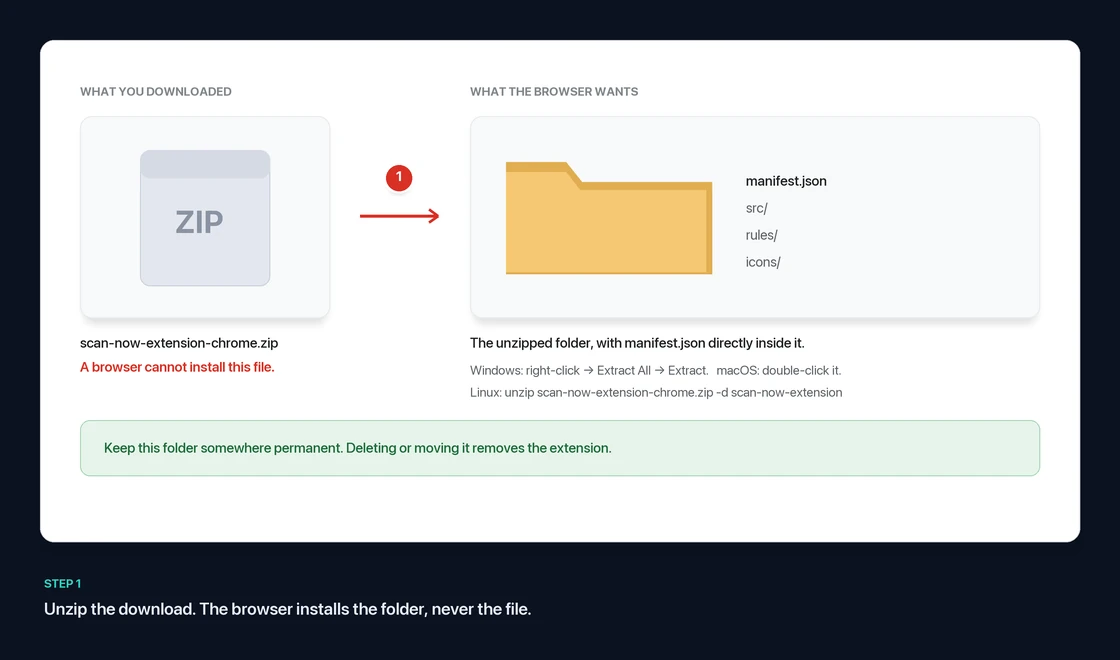
The download is a .zip. Neither browser can install a zip — both ask for the folder inside it, so if you point them at the zip itself nothing happens and no error explains why.
- Windows: right-click the file → Extract All… → Extract. Do not just double-click it: Windows shows a zip's contents in a normal-looking window, but nothing is really unpacked and the browser cannot read it.
- macOS: double-click the file. A folder of the same name appears next to it.
- Linux:
unzip scan-now-extension-chrome.zip -d scan-now-extension
You should end up with a folder containing manifest.json, and folders named src, rules and icons. That folder is what you point the browser at. Keep it somewhere permanent — if you delete or move it, the extension stops working.
Chrome, Edge, Brave and other Chromium browsers
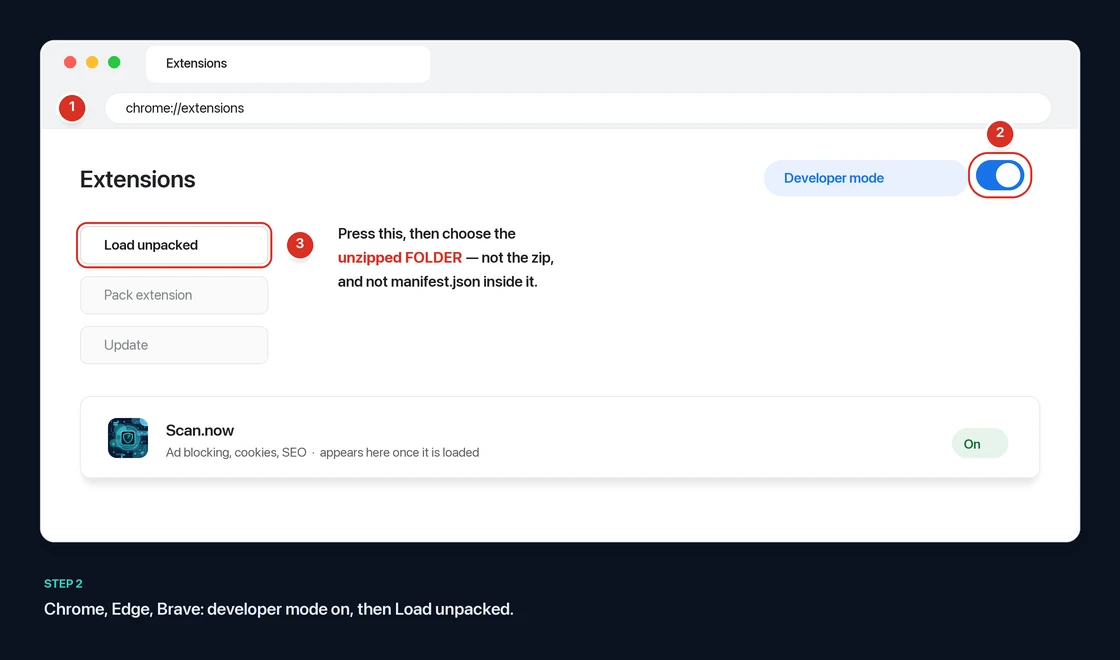
- Download the Chrome package and unzip it, as above.
- Open
chrome://extensions— on Edge it isedge://extensions, on Bravebrave://extensions. Typing it into the address bar is the reliable way; the menus move between versions. - Switch on Developer mode, top right.
- Press Load unpacked, top left, and choose the unzipped folder. Not the zip, and not
manifest.jsoninside it — the folder that contains it. - Pin the icon: Click the puzzle-piece in the toolbar, then the pin beside Scan.now.
Chrome shows “Load unpacked” only while Developer mode is on, and it will warn you about developer-mode extensions each time it starts until the store listing is approved. Removing the folder removes the extension.
Firefox 128 or newer
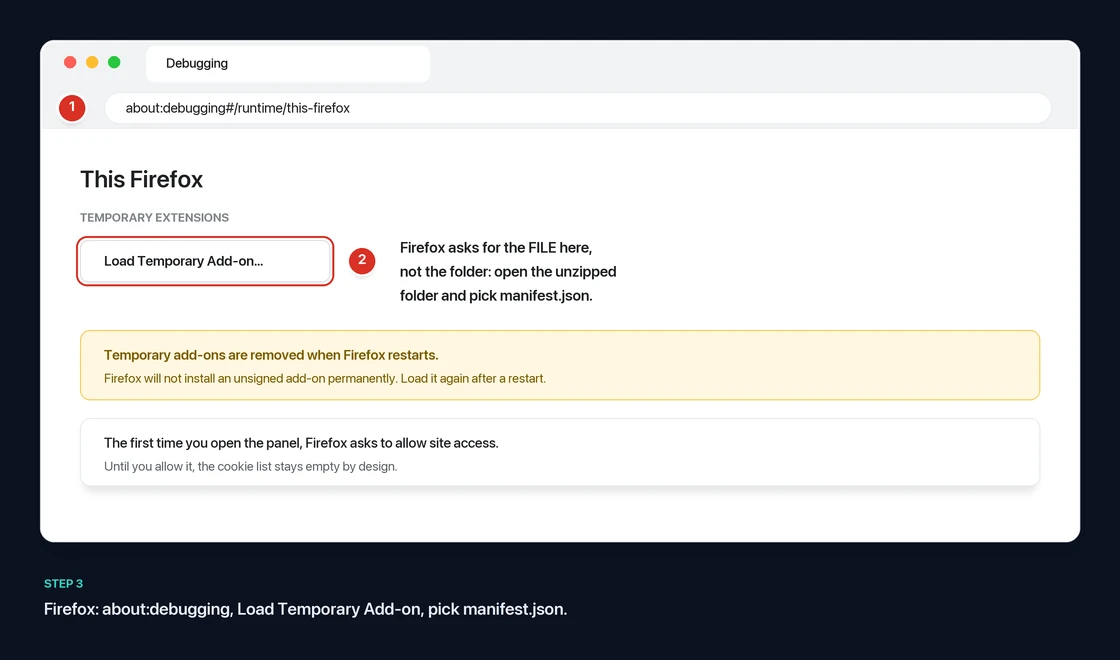
- Download the Firefox package and unzip it, as above. It is built from the same source; only the manifest differs, because each engine rejects the other's keys.
- Open
about:debugging#/runtime/this-firefox. - Press Load Temporary Add-on… and choose
manifest.jsoninside the unzipped folder. This is the one place it is the file rather than the folder — Firefox asks for the manifest, Chrome asks for the folder. - Open the panel on any site. Firefox grants site access separately, so the first time it asks you to allow it; until you do, the cookie list stays empty by design.
Firefox removes temporary add-ons when it restarts, so you will need to load it again after a restart. That is not a choice we made: Firefox will not install an unsigned add-on permanently, and signing happens at review. The alternative is Firefox Developer Edition, where xpinstall.signatures.required can be switched off in about:config.
Then pin it
If it did not work
| What you see | What it means |
|---|---|
| Nothing happens when you pick the file | You chose the zip. Unzip it and choose the folder inside. |
| “Manifest file is missing or unreadable” | You chose a folder one level too high or too low. The right folder is the one with manifest.json directly inside it. |
| No “Load unpacked” button | Developer mode is still off, top right of chrome://extensions. |
| The icon vanished after a restart | Firefox: Temporary add-ons do not survive a restart. Chrome: The folder was moved or deleted. |
| The cookie list is empty on a site that plainly has cookies | Firefox has not been granted site access yet. The panel offers the button that asks. |
Why you should trust it, and how to check
An extension with access to your cookies is exactly the kind of software that deserves suspicion. We would rather hand you the means to verify than ask you to take our word, so here is what the code cannot do, what our own scanner says about it, and how to confirm both yourself.
What it cannot do
| Guarantee | Why it holds |
|---|---|
| It reads a page only when you open the panel, and only that page | No content script ships with it and nothing runs in the background of your browsing. Two things can touch a page, both on your instruction: The SEO panel, which reads the page in the tab you have open at the moment you look at it and keeps the result in the popup, and the ad-hiding stylesheet, which you switch on and which is CSS — it can hide a box, and it cannot read a form, a password or a keystroke. Close the popup and nothing of ours is running anywhere. |
| Nothing it reads is sent anywhere | The SEO panel renders in the popup and is discarded when you close it. There is no upload, no account and no request of any kind: The “crawl the whole site” button at the bottom of it opens this website with the hostname in the URL, and that is the only outbound action in the extension. |
| It cannot change after you install it | No remote code: No eval, no new Function, no script loaded from a server. Everything it runs is in the zip you downloaded, and Manifest V3 forbids adding more. |
| It never sends your browsing anywhere | Nothing is sent in the background, ever. Outbound actions happen only when you press them. “Scan this site” opens Scan.now with the current hostname; “Local LLM key audit” opens the Premium folder scanner without passing a hostname or file; and “Check” fetches one small version file with no cookies or referrer. The extension never receives the folder selected on Scan.now. |
| Nothing leaves your machine | The keep-list, settings and counters live in local extension storage. There is no account, no sync, no analytics and no crash reporting. |
| The blocker never sees your traffic | Blocking is declarative: The browser enforces a static rule list, and the extension is not in the request path. The counter does not change that — it asks the browser how many of our own rules matched and in which tab, and what comes back is a rule number and a timestamp. No URL, no header, no request. The panel can still name the domains it blocked, because a rule number can be looked up in the list shipped in the package: easylist rule 4021 is a line that names a host, and that host is what you are shown. Nothing had to watch your browsing to work that out, and the counts are stored on your machine and sent nowhere. |
What our own scanner says about it
We ran the package through the extension analyzer on this site, and it rates our own extension high risk. We are showing you that rather than hiding it, because the reason matters: The score is driven entirely by cookies plus access to all sites, which is the irreducible minimum for a cookie editor. Every behavioural check (remote code, obfuscation, content scripts and weakened CSP) passes. A cookie manager that scored “low risk” would be one that could not edit your cookies.
How to verify it yourself
- Check the download. Built 05 October 2026. Run
shasum -a 256 <file>and compare with the checksums in the panel on the right. - Scan it. Upload the zip to our extension analyzer and read the permission breakdown yourself, or use any other analyzer you prefer.
- Read it. The whole extension is about 1,050 lines across two JavaScript files, plus six rule lists of plain domain names and one stylesheet. The two large lists are machine-generated from EasyList and EasyPrivacy by a script in the repository, so you can regenerate them and diff the result. That is deliberately small enough to read in one sitting, which is the only verification that really counts.
- Watch it. Open your browser's network panel with the popup open. You will see no requests from the extension at all.
It is not signed by either vendor, because it has not been through their review yet. We would rather say that plainly than imply one we have not had. Licence: MIT, so you can fork it, audit it or strip out whatever you do not want.
Permissions it asks for, and why
| Permission | Used for |
|---|---|
cookies, host_permissions: <all_urls> | Reading and editing cookies for the site in the current tab, and auto-deleting them on close. This is the same access every cookie manager needs. |
tabs | Knowing which site the current tab is on and when the last tab for a site closes. |
browsingData | Clearing local storage and cache for a site when auto-delete runs. |
declarativeNetRequest | Blocking ad and tracker requests with static rulesets. The extension never sees request contents. |
declarativeNetRequestFeedback | Asking the browser how many of our own rules matched, so the popup can show a count. It returns rule numbers and timestamps, never URLs. |
scripting, activeTab | Two uses, both on your instruction. Reading the open page when you look at the SEO panel, which is the only way to audit a page you are signed in to — fetching the URL again would return the logged-out version. And registering src/hide-ads.css if you switch on ad-space hiding. activeTab narrows the grant to the tab you opened the popup on. |
management | Listing your other extensions for the audit. Read-only. |
storage | Your keep-list and settings, stored locally. |
No permission here lets the extension read page content, and nothing of ours executes in a page. Run the package through the extension analyzer to verify.